Search for articles...
Search for articles...
A detailed guide showing how to change app-level environment variables of running application
Suppose you have two applications, one of which requires you to change global environment variables. This guide contains two ways to do this.
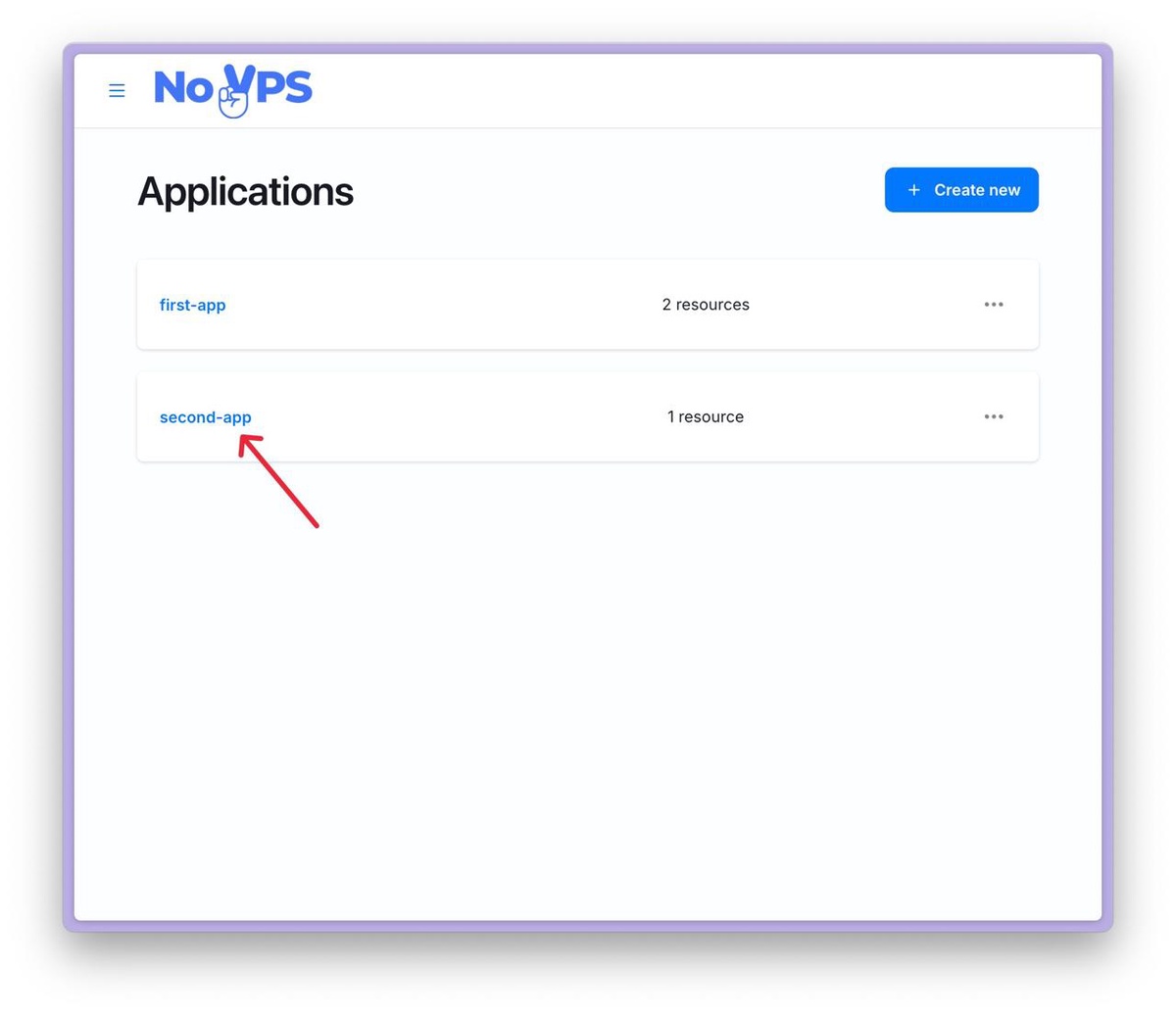
1. First, select the desired application on the dashboard home page and click on its name.
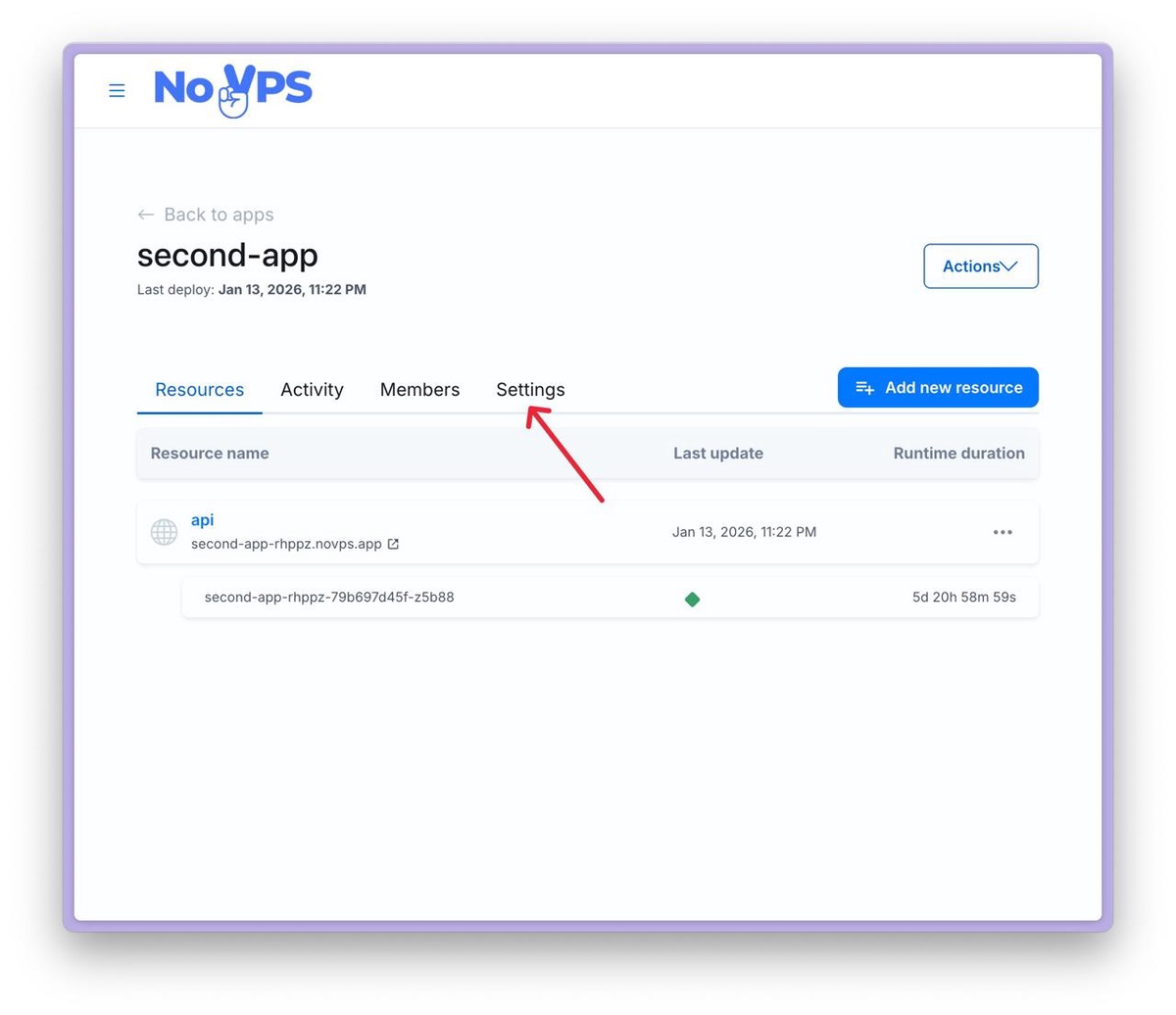
2. The application page will open, displaying a list of running resources and tabs that allow you to switch between sections. Click on the settings tab.
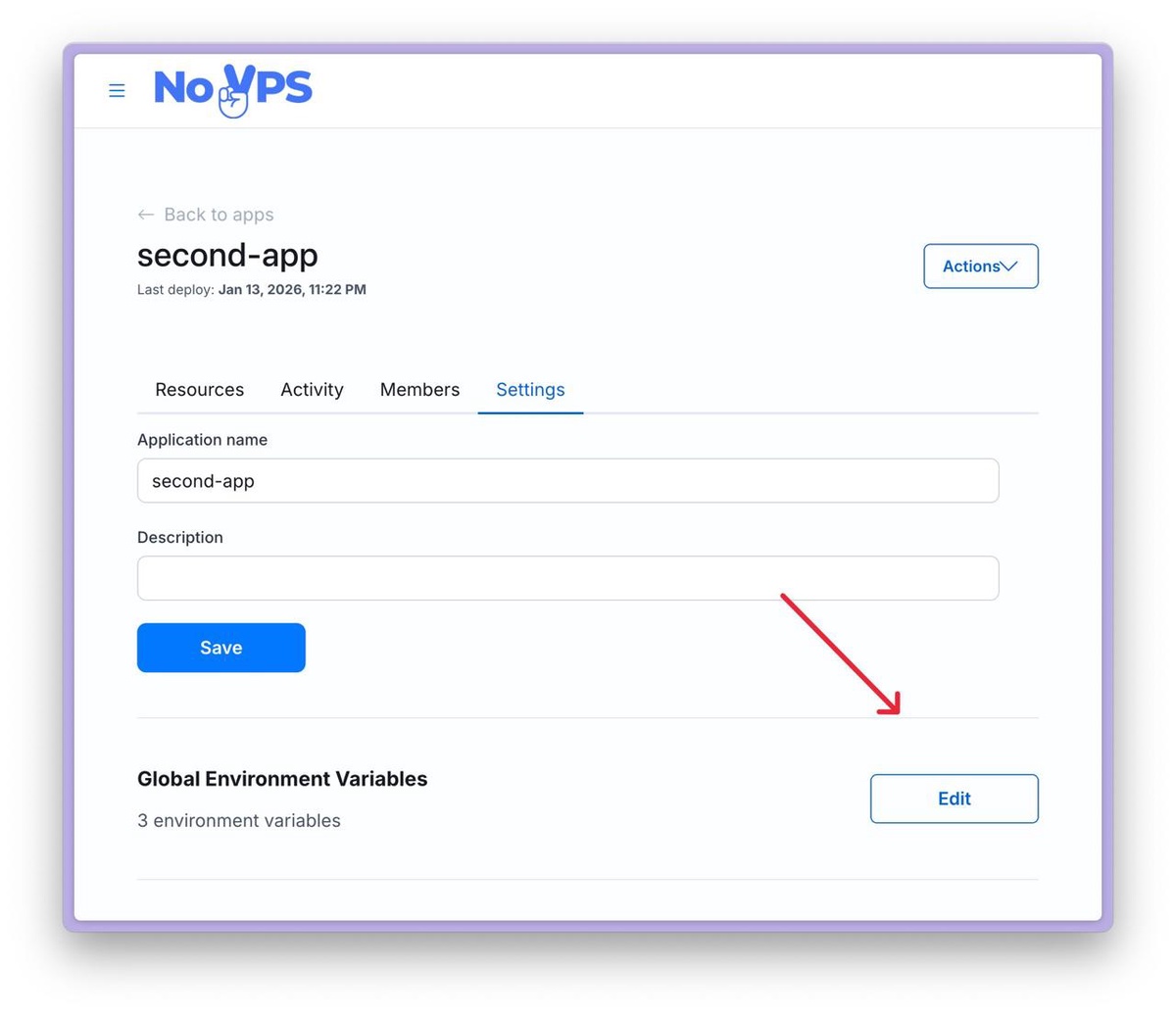
3. On the settings page, find the Global Environment Variables section and click the Edit button.
4. You will see a list of the specified environment variables (if you specified them when creating the application). If you did not specify environment variables when creating the application, you will see a form for adding a new variable.
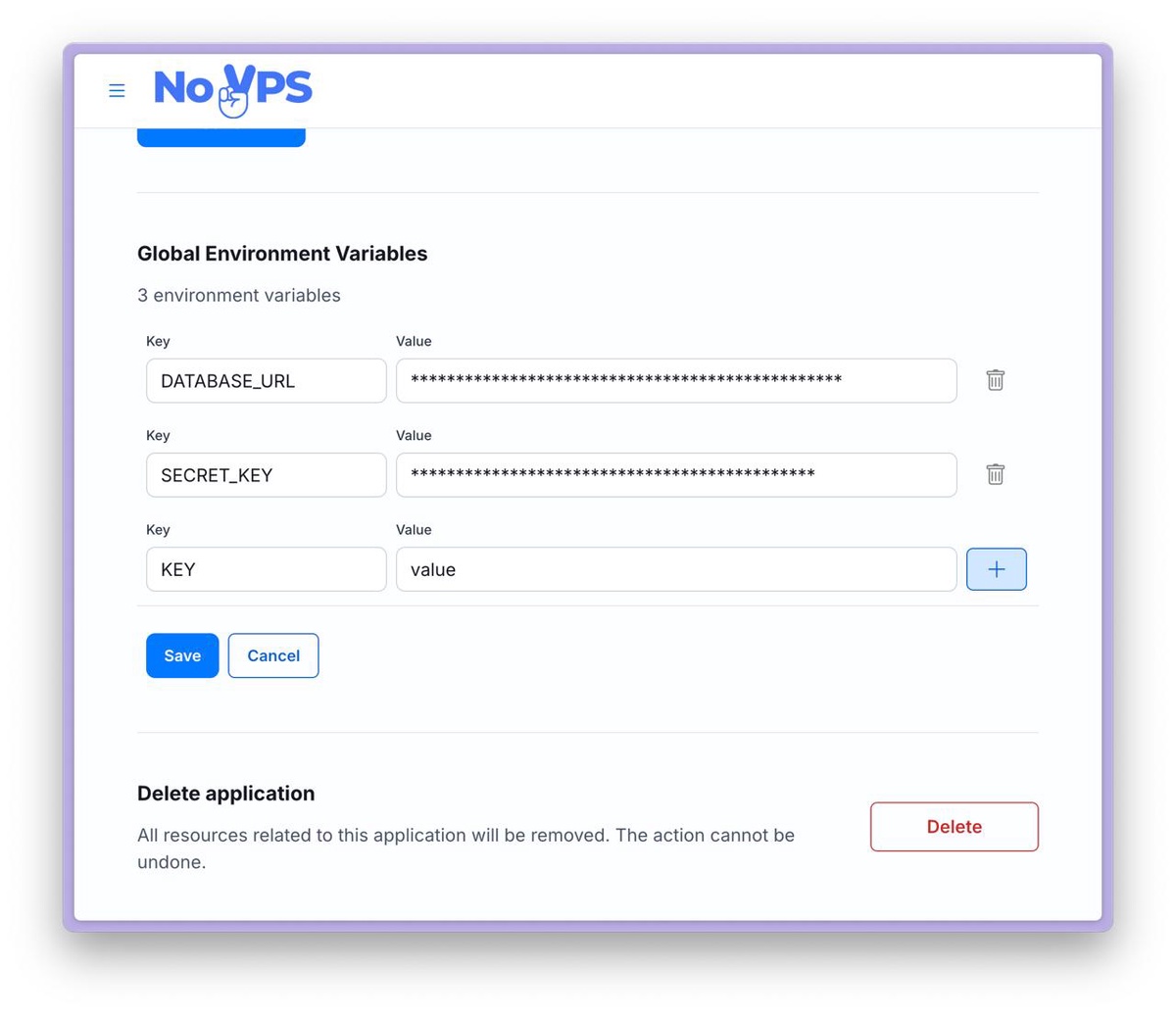
5. Add or change the necessary environment variables.
6. Once you have made the necessary changes, click the Save button. The variables will be saved, and all resources within the application will be redeployed with the new variables.
A more convenient way to manage environment variables is to use the NoVPS Secrets feature. The advantage of this approach is that it provides a history of changes and the ability to quickly roll back to a previous version of the settings at any time.
1. To go to the NoVPS Secrets section, select the corresponding item in the left menu and click on it.
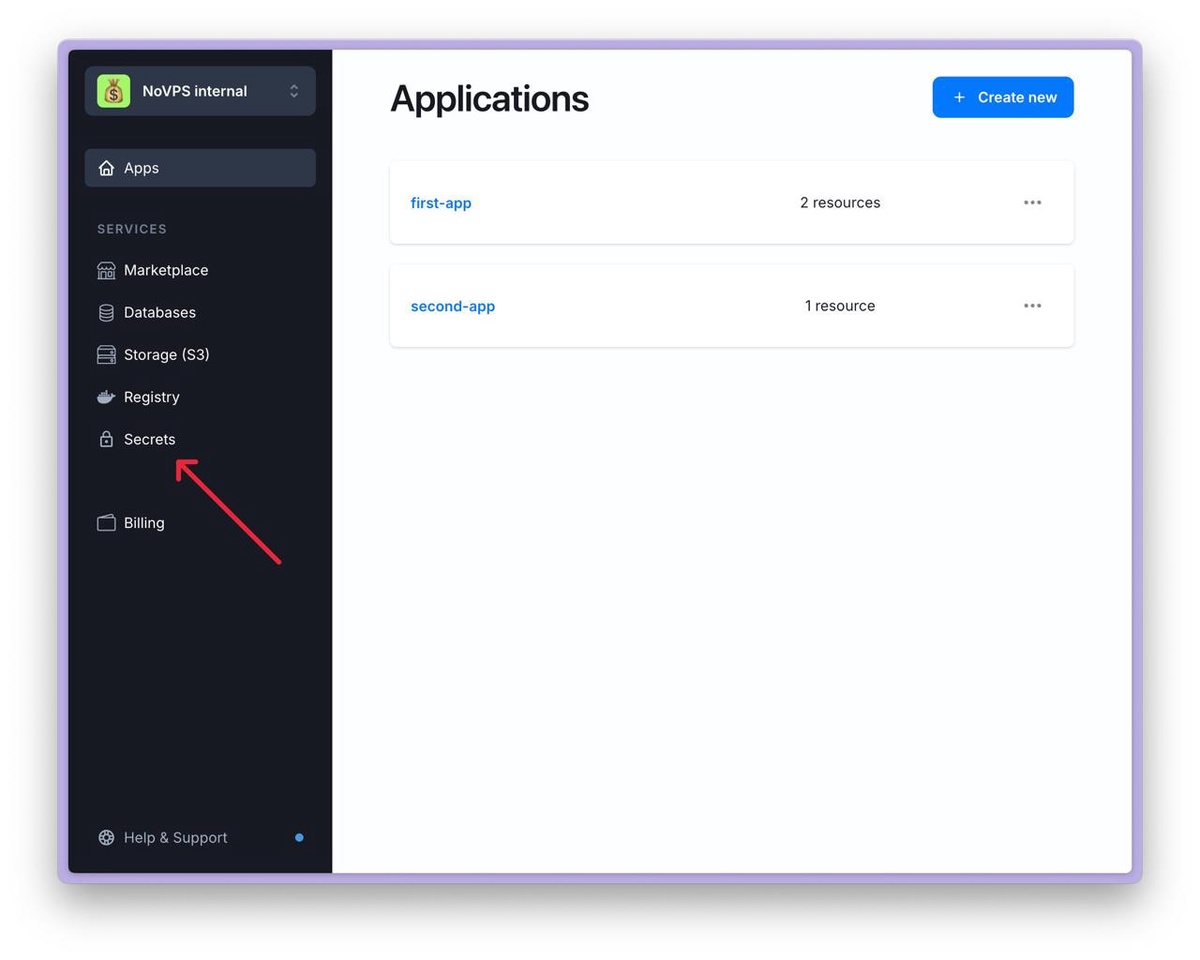
2. You will be taken to a page with a list of all applications and running resources. Select the application whose variables you want to change and click on its name.
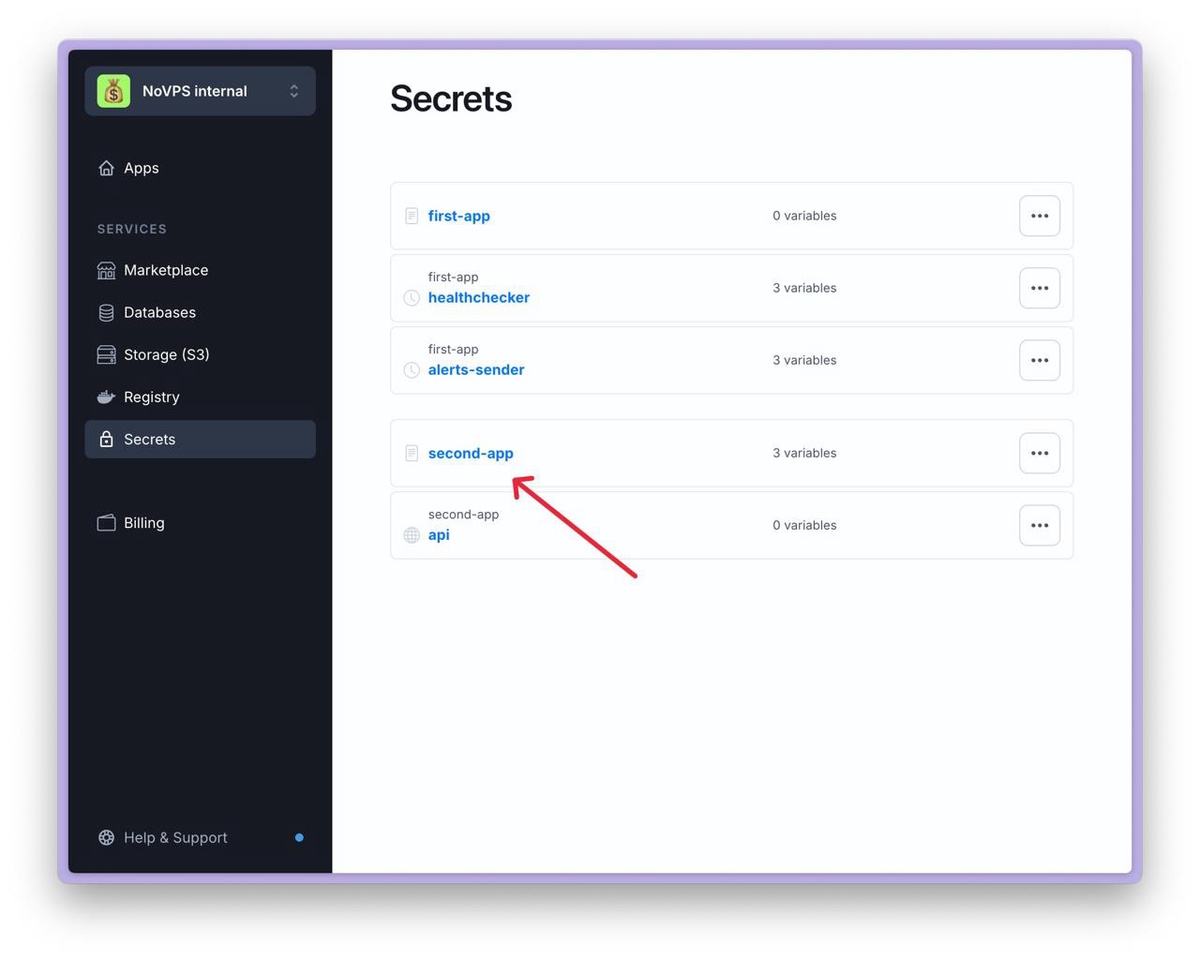
3. You will be taken to a page containing the current version of the environment variables for the selected application.
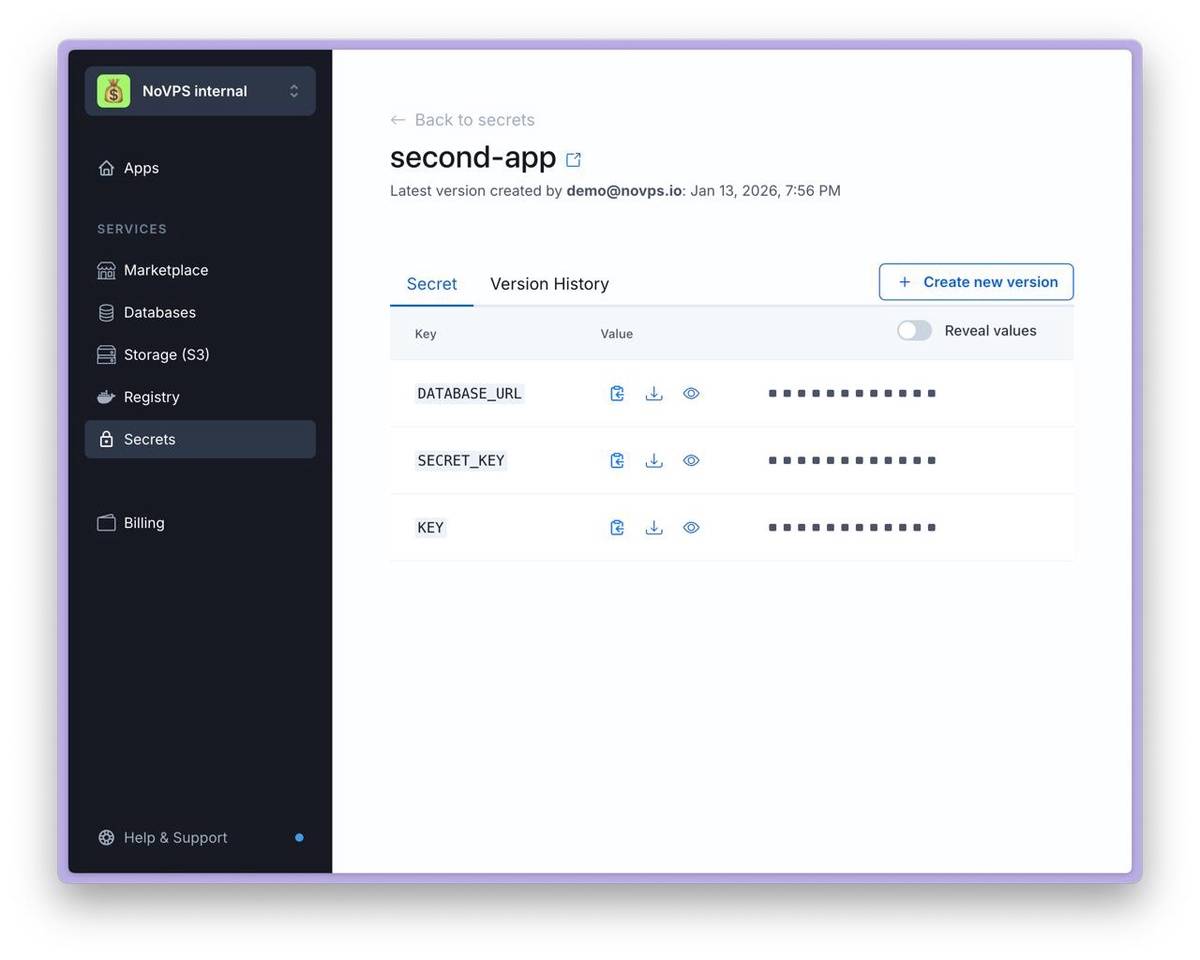
4. To change the environment variables, click the Create new version button.
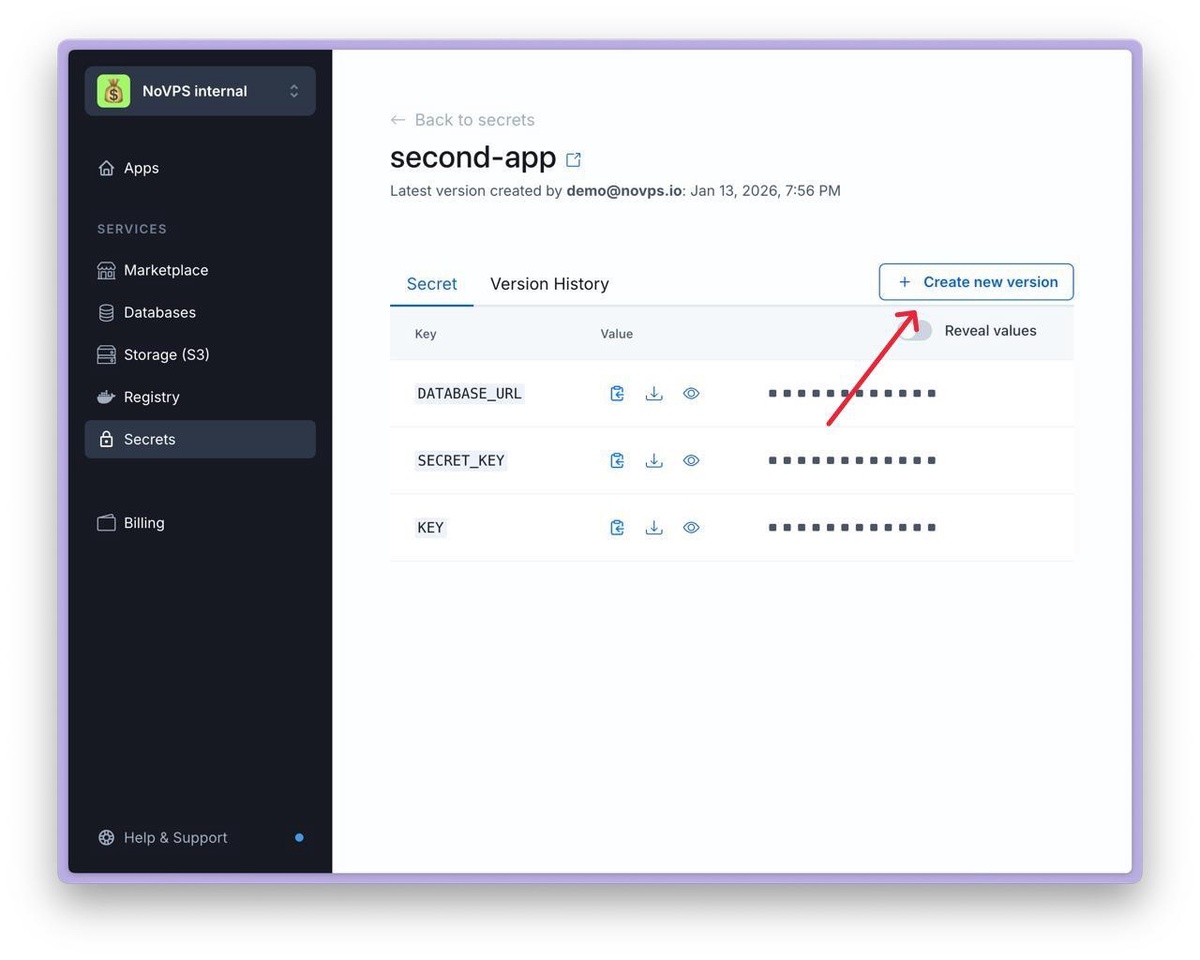
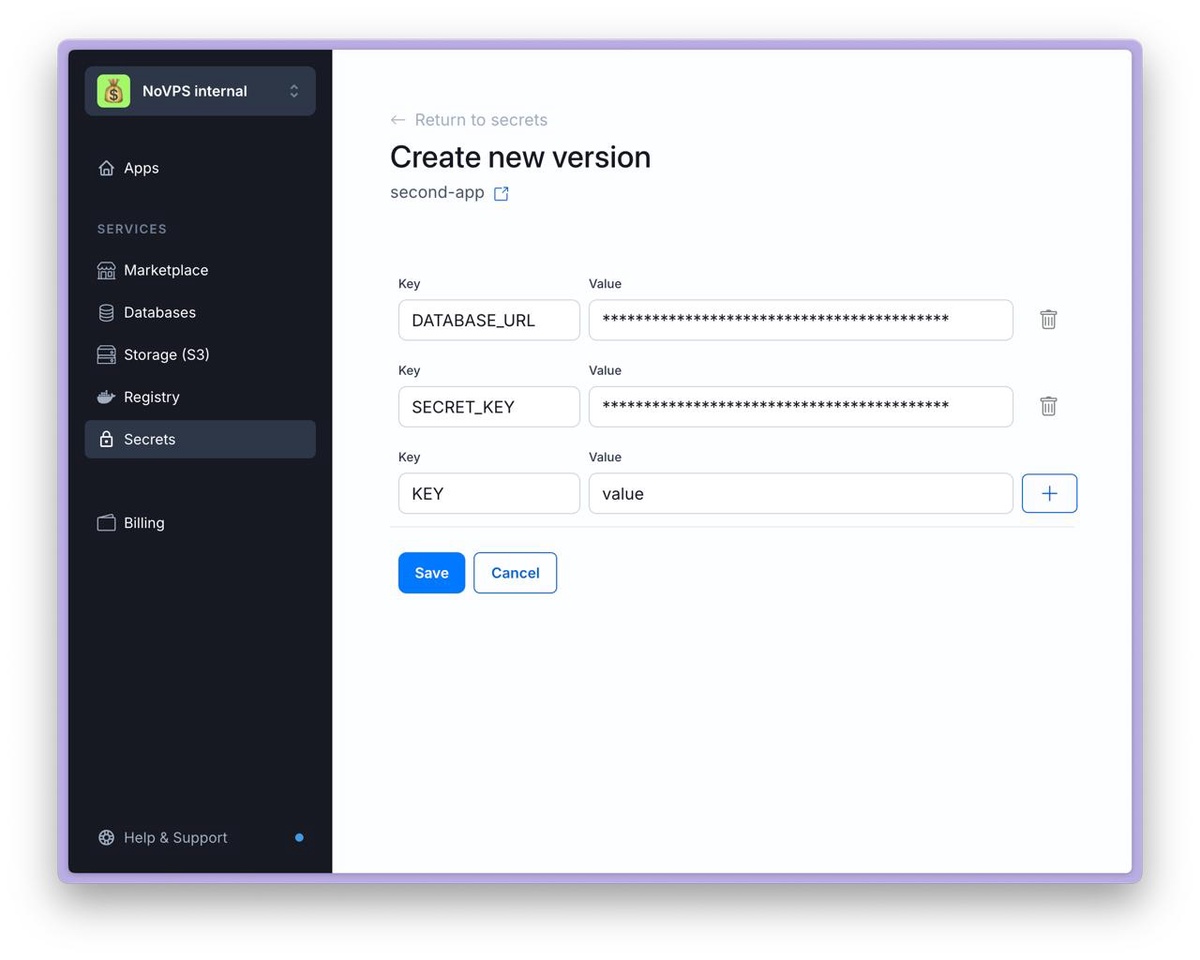
5. You will be redirected to a page where you can change existing environment variables or add new ones. After you have made your changes, click the Save button.