
Search for articles...
Search for articles...
An example of an application that requires a connection to a PostgreSQL database in order to function.
This application is a Todo List written in Python using the asynchronous FastAPI framework, which requires a connection to PostgreSQL for data storage.
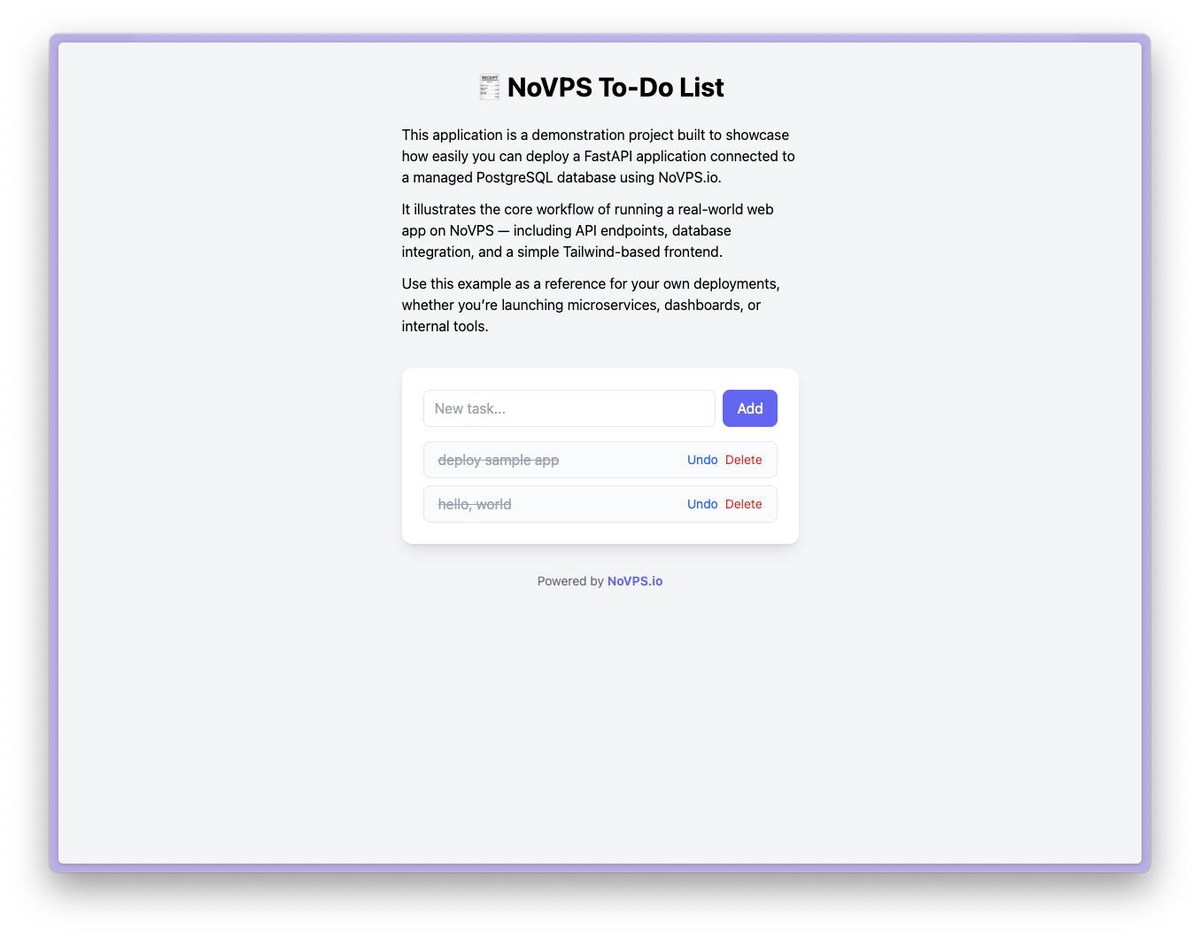
Since the NoVPS cloud platform is designed to run Docker images, this sample application is packaged in a Docker image that is stored in the Github Container Registry.
The source code for this application is completely open and available for viewing on Github.
1. First of all, to launch this application, you need to have an account on the NoVPS cloud platform and create a project. If you don't know how to create a new project, you can find detailed instructions here.
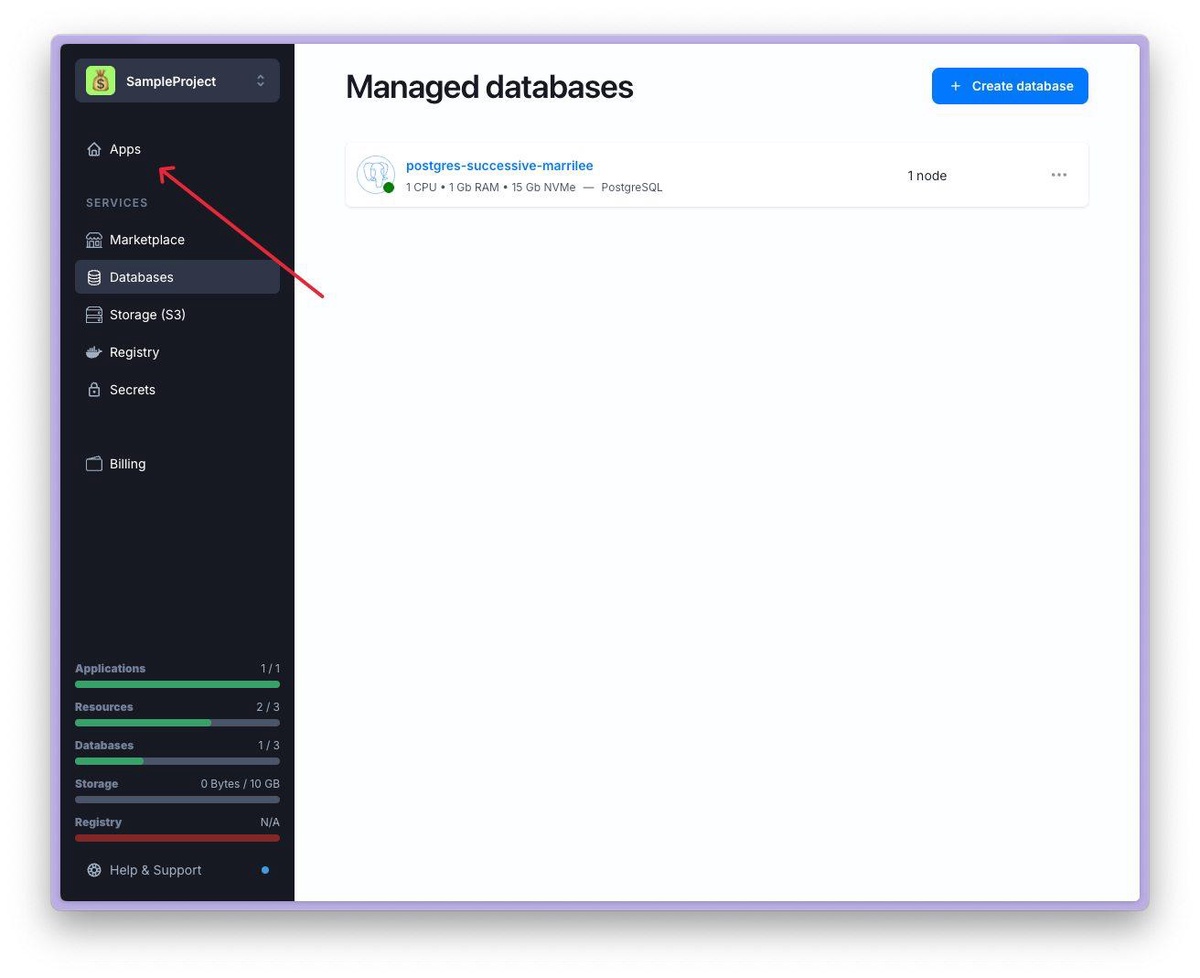
2. Before creating an application, you need to have a database. To do this, select the Databases section in the menu and create a new database. You can find step-by-step guide how to create new PostgreSQL database here.
3. If you already have a database, prepare the Connection String, which will be needed later. The Connection String is constructed as follows:
Let's take a closer look at each necessary parameter:
<username> — the username for connecting to the database. This can be admin if you want to use the default credentials, or any other user you have created.<password> — the <username>'s password. It is generated automatically when creating a database (for the admin user) or when creating a new user.<host>:<port> must refer to the Private Endpoint from the Database Details page.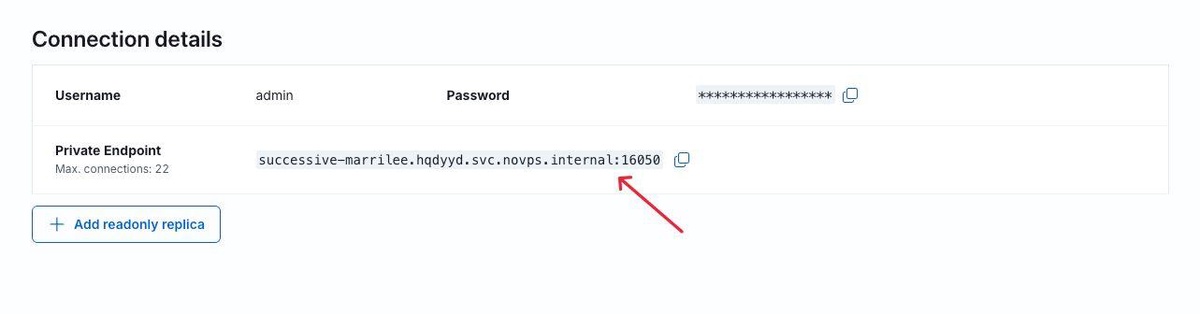
<db-name> is the name of the database you want to connect to. By default, this is novpsdb, but you can create any other database in the Databases & Users section within Database Details.<username> must have read, write, and create access to the specified database.4. Now we are ready to deploy the FastAPI Sample Application. To do this, go to the Apps section.
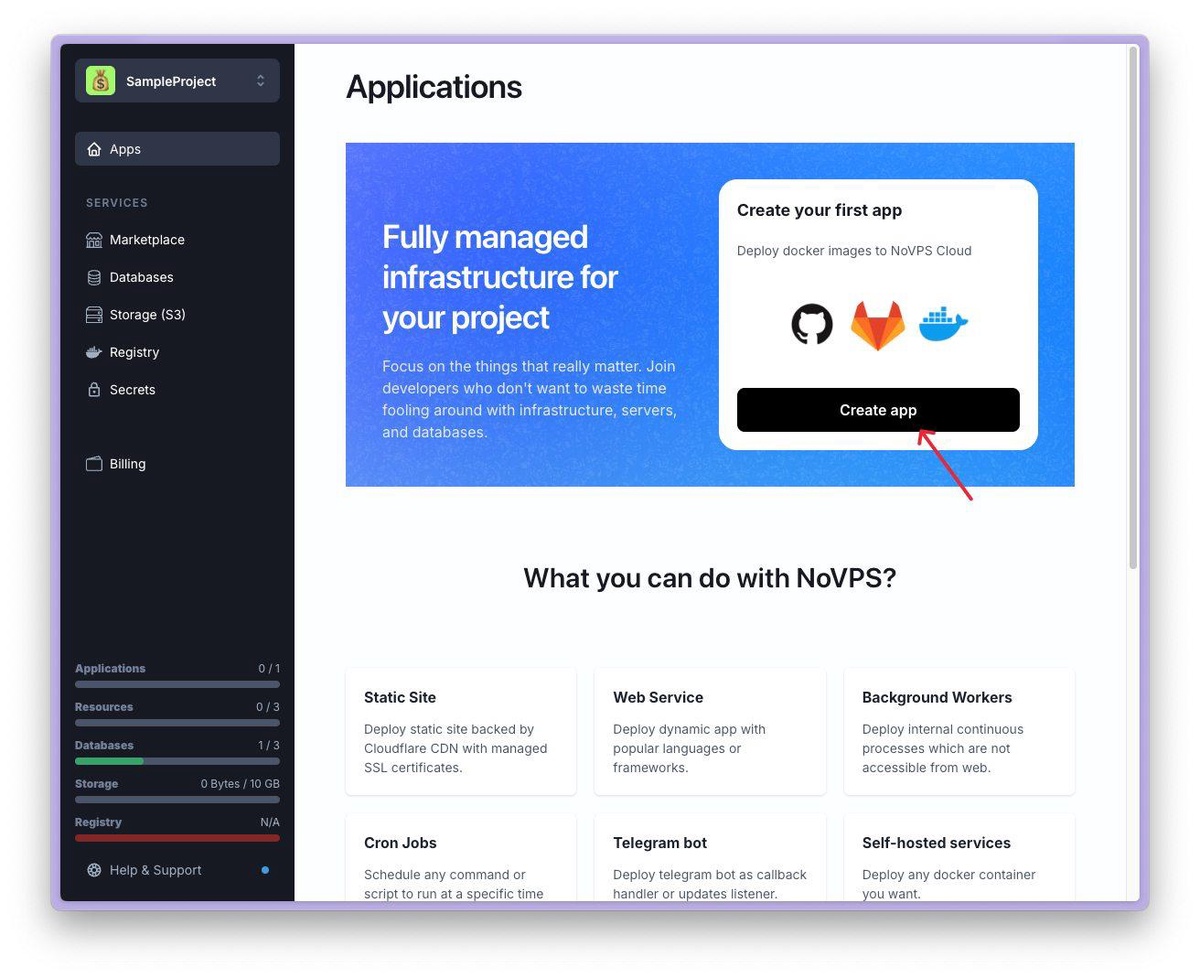
5. Click Create app button
6. Now fill in all the fields as shown in the screenshot below.
ghcr.io/novps/fastapi-sample-applatest.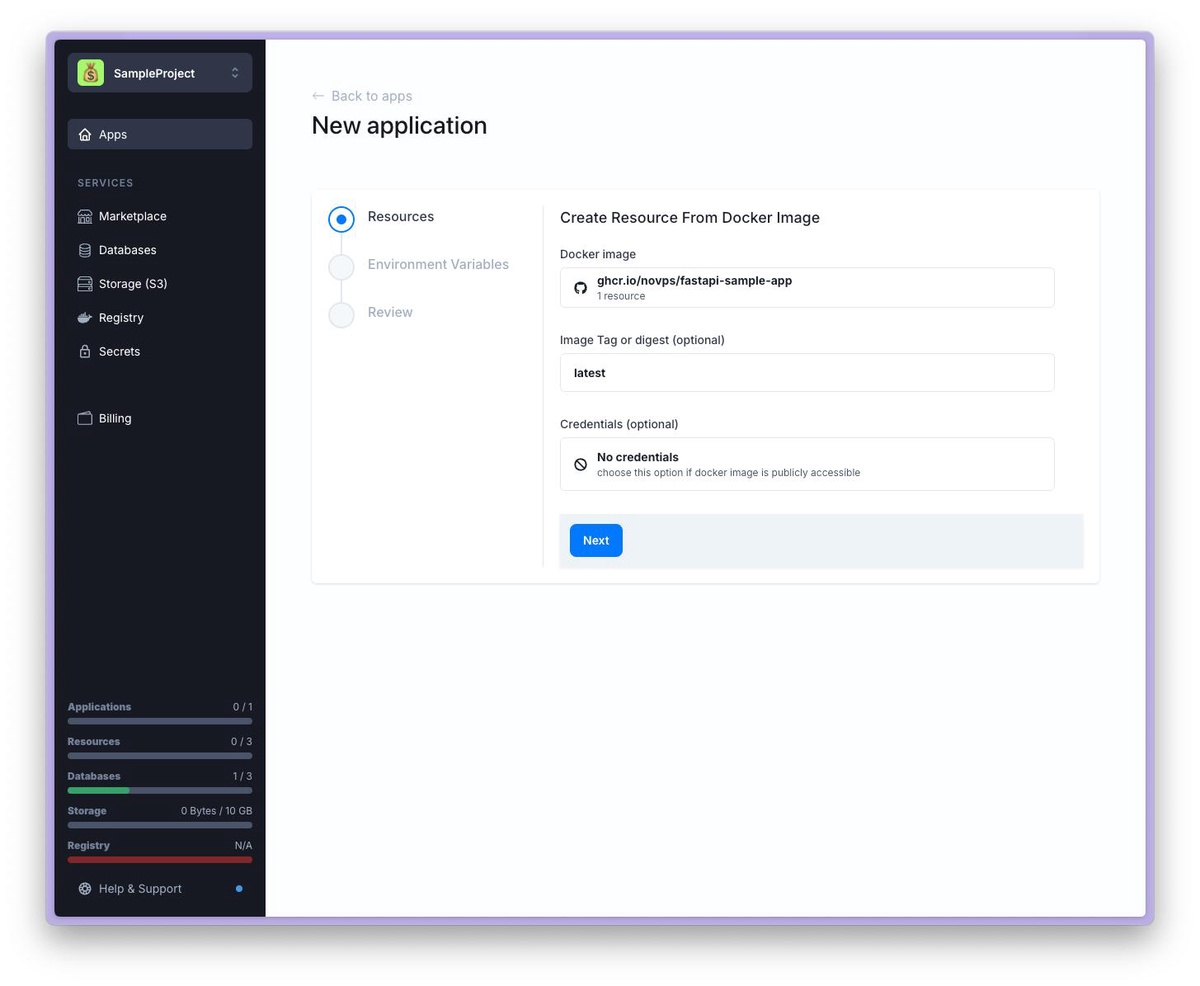
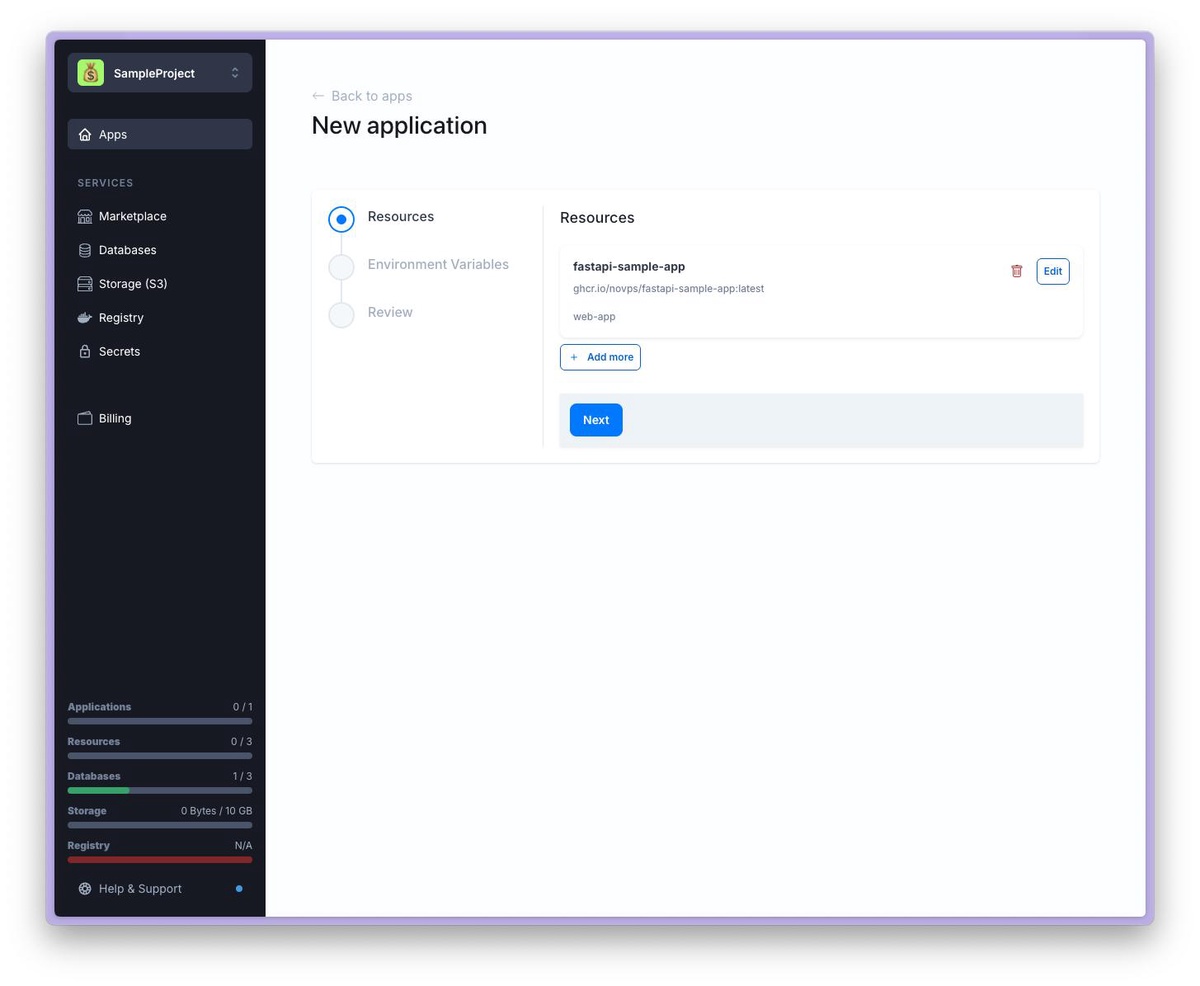
7. Now click Next. You should see a list of resources that will be created. In our case, this is a single web app (as shown in the screenshot). If necessary, you can change the resource configuration. But we will assume that everything remains unchanged.
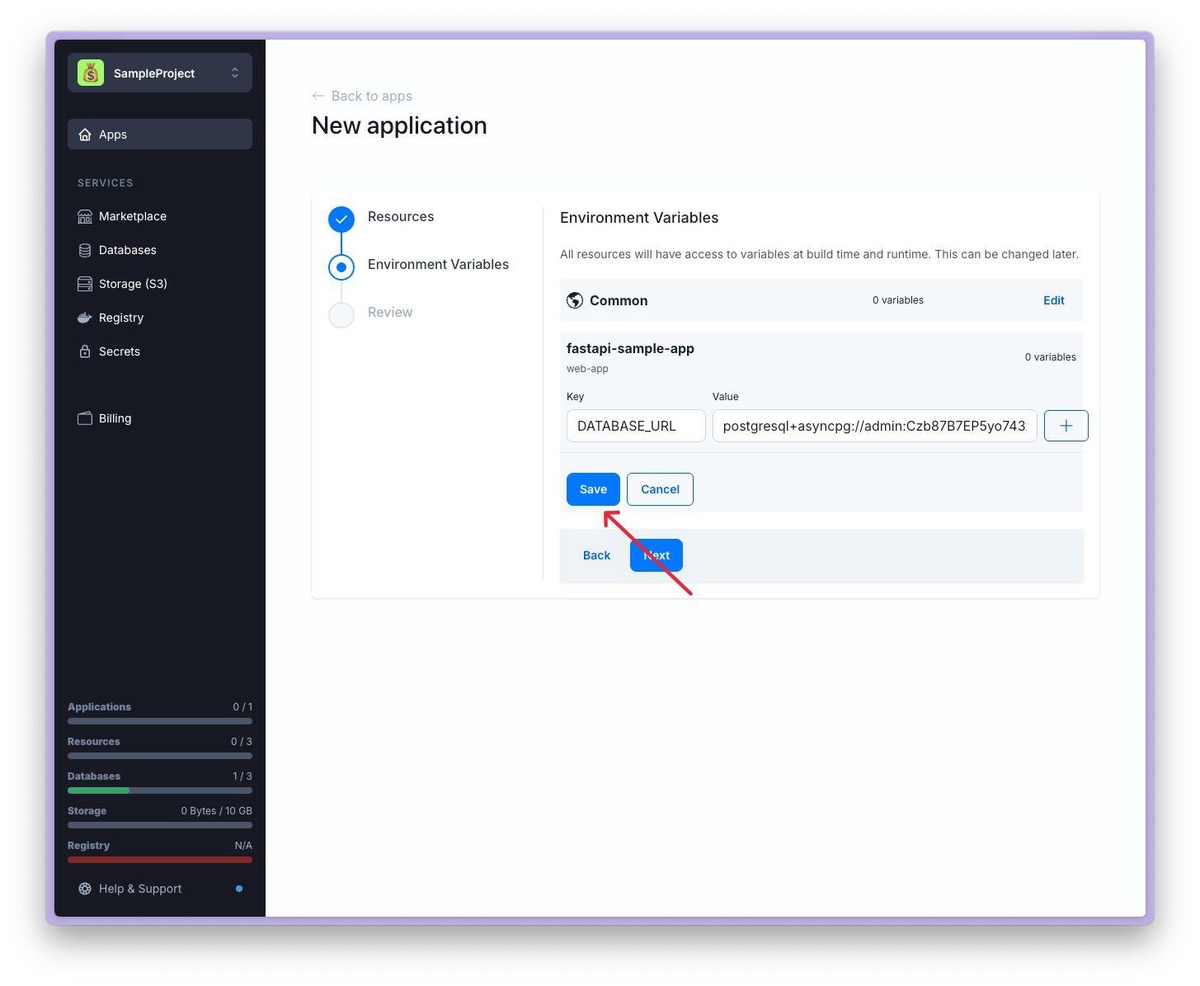
8. Click Next. Now you need to specify the environment variables. Remember in step 3 of this guide we collected the Connection String? You need to add it to our resource. In the case of FastAPI Sample Application, it doesn't matter where you specify the environment variable: in the Common section or in the resource section.
Choose any section and click the Edit button. Then, in the key field, specify DATABASE_URL, and in the value field, specify your Connection String from step 3. Don't forget to save by clicking the appropriate button, and proceed to the next screen by clicking Next.
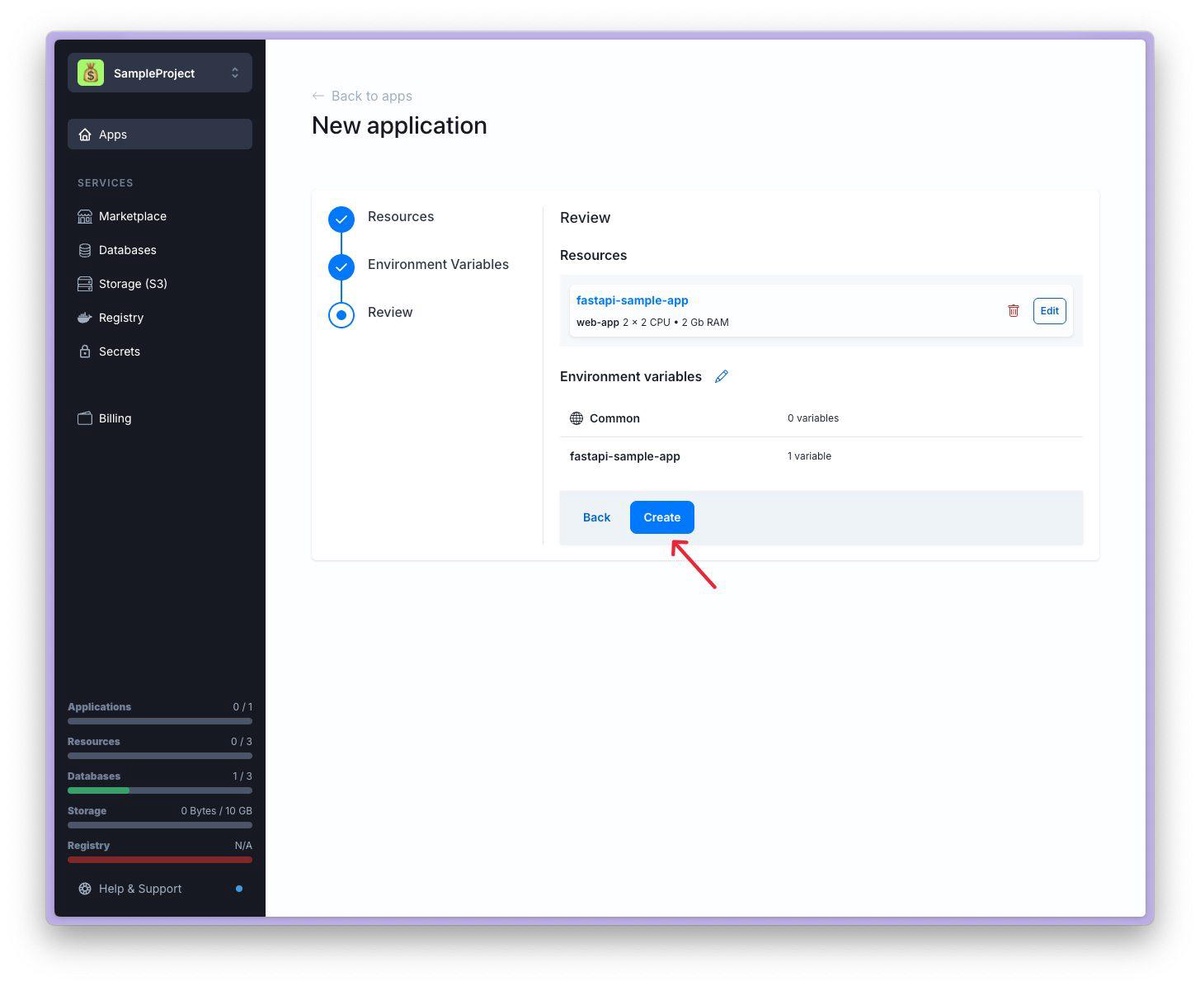
9. Check that everything is correct and click the Create button to confirm the creation of the application.
10. Once the application has been successfully created, you will be redirected to a page with a list of resources, where you will see the FastAPI Sample Application you just created.
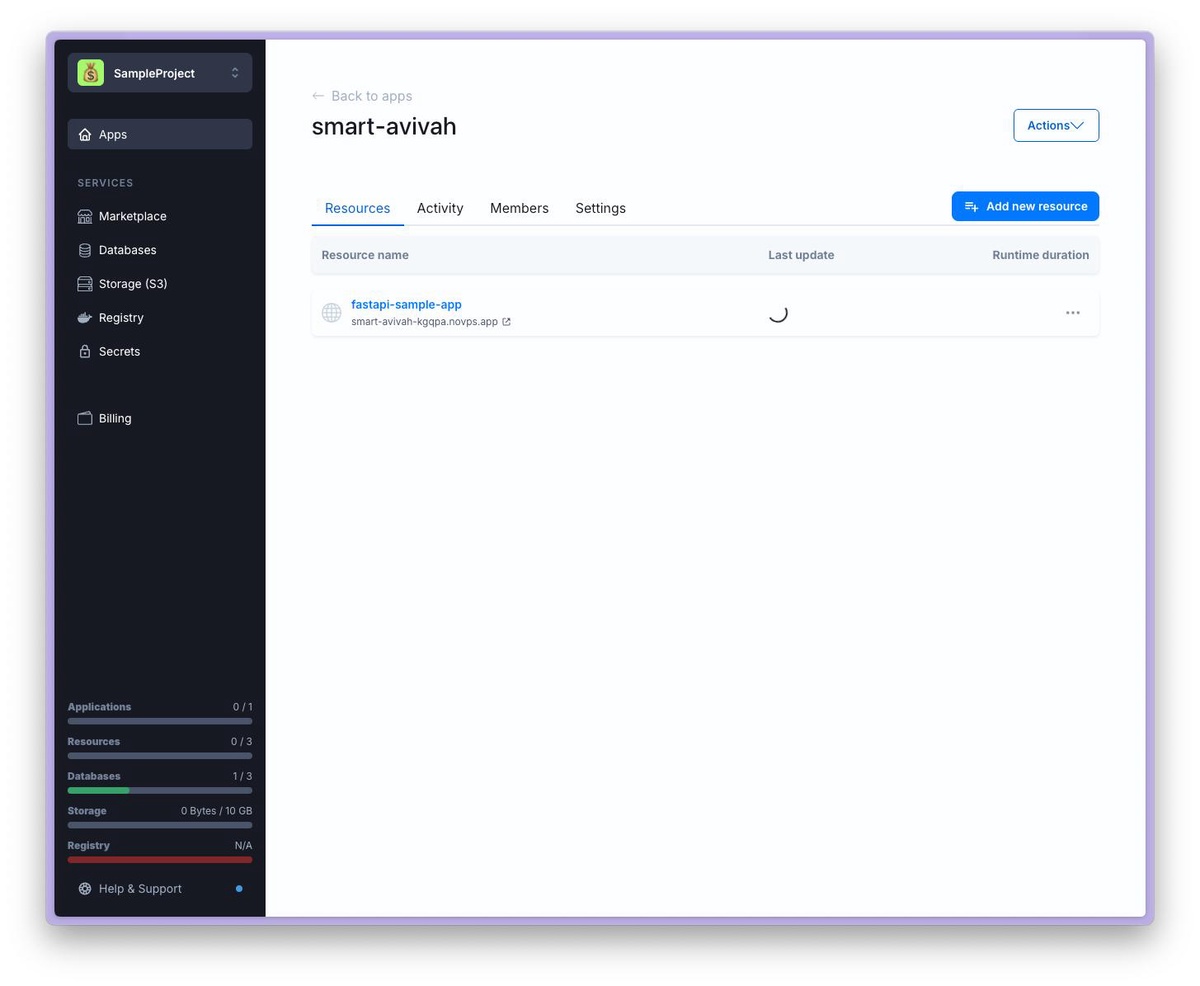
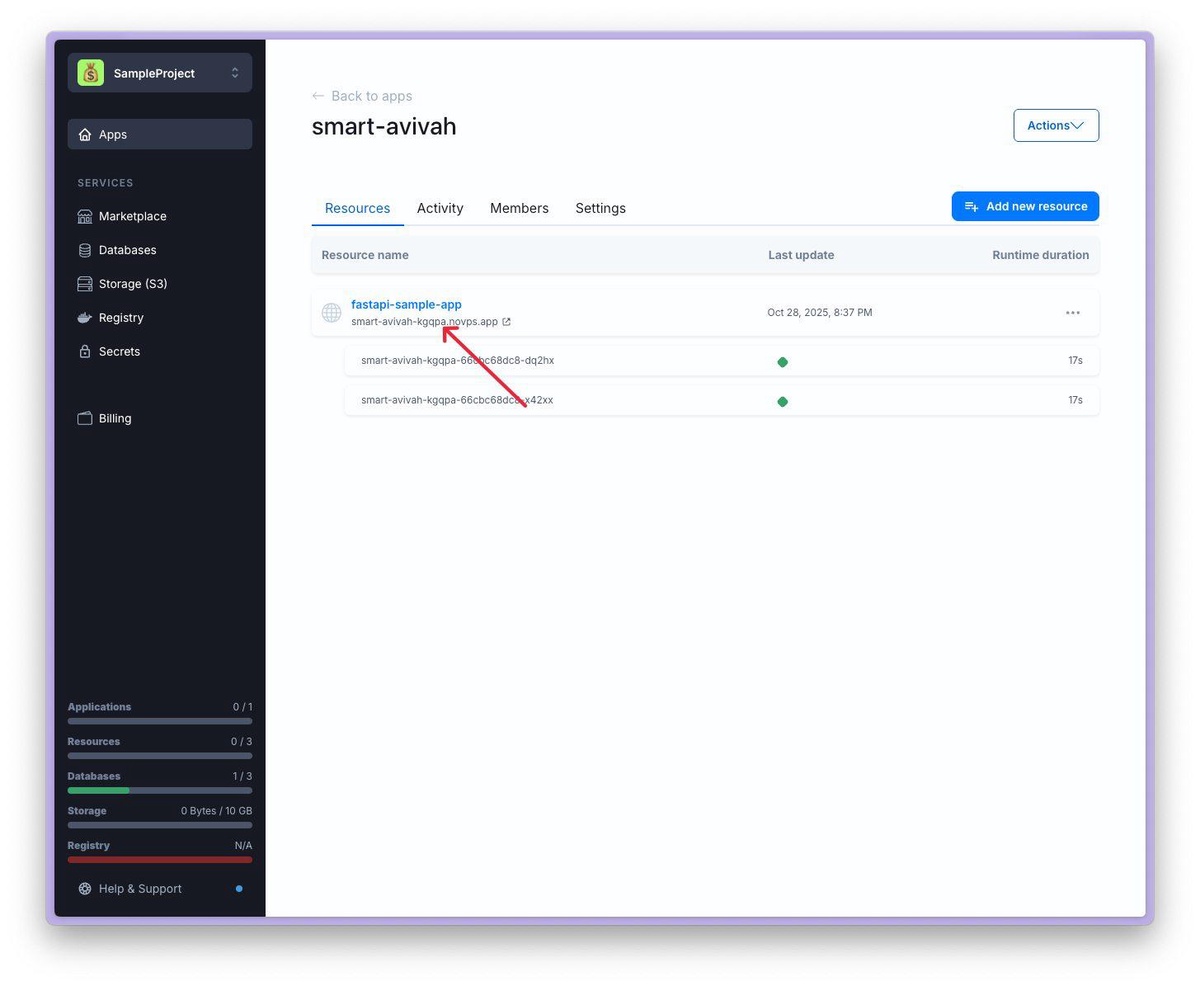
11. When the application is successfully deployed on the NoVPS cloud platform, its status will change (as shown in the screenshot below). You can now go to FastAPI Sample Application by clicking on the address listed under the resource name.
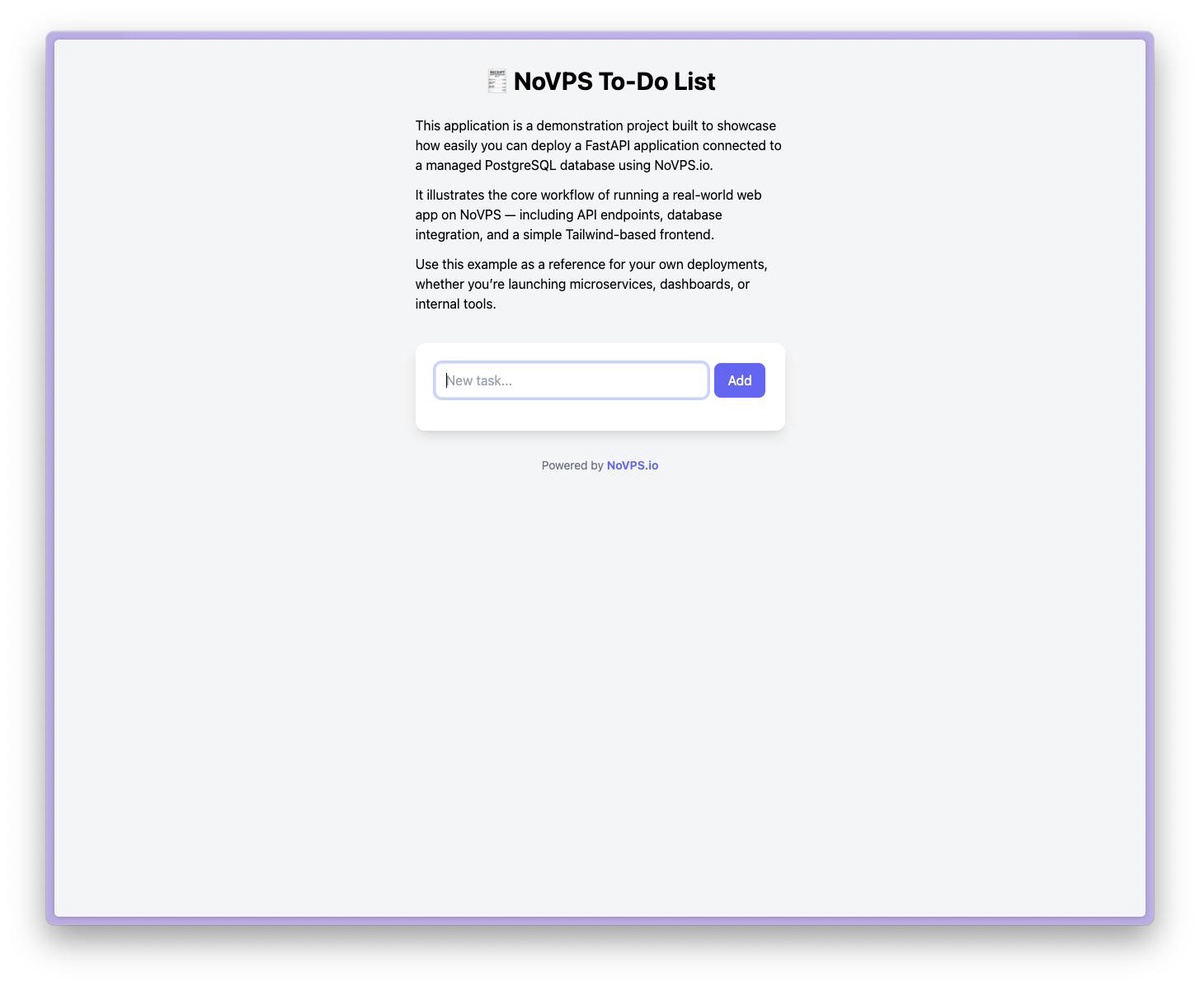
Congratulations! You have just launched your first application on the NoVPS cloud platform. You can try adding new to-dos, marking them as completed, or deleting unnecessary ones. The FastAPI Sample Application is fully functional thanks to the use of PostgreSQL (you can verify this by adding a task and then opening the site in an incognito tab—you will see the added task there).
If you still have questions, continue exploring the Help Center. If you encounter any problems during the process, feel free to contact support or your personal manager if you have paid for the corresponding tariff plan.